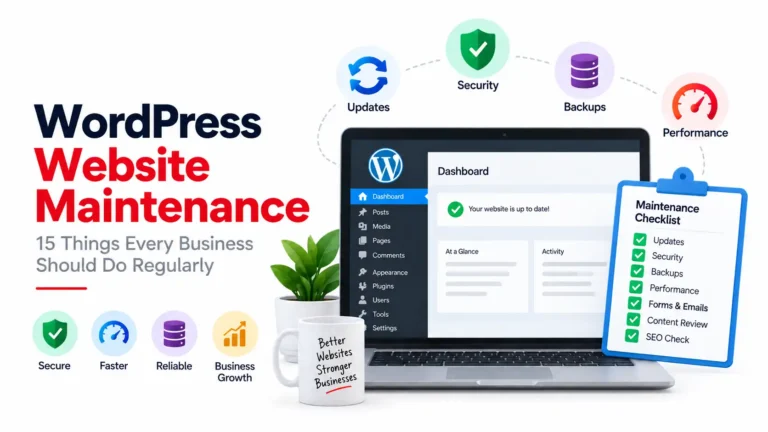
A WordPress website is more than just a digital brochure for your business. For many companies, it is responsible for generating leads, selling products, collecting customer information, publishing content, and helping customers find the business online.
But launching a WordPress website is only the beginning.
Like any other business system, your website needs regular maintenance to remain secure, fast, reliable, and effective.
The good news is that you don’t need to be a WordPress expert to understand the basics.
In this guide, we’ll cover 15 important WordPress website maintenance practices that businesses should follow regularly.
1. Keep WordPress Updated
One of the simplest and most important WordPress maintenance tasks is keeping WordPress itself updated.
WordPress regularly releases updates that may include:
- Security fixes
- Bug fixes
- Performance improvements
- New features
- Compatibility improvements
Running an outdated version of WordPress can leave your website exposed to known security vulnerabilities.
Best practice
Before updating WordPress:
- Take a complete backup.
- Check plugin and theme compatibility.
- Update in a controlled environment when possible.
- Test important website functionality after the update.
For business websites, don’t treat updates as something you only do when the website breaks. Make them part of your regular maintenance routine.
2. Update Plugins and Themes
WordPress plugins and themes are another important part of website maintenance.
A typical business website may have plugins for:
- SEO
- Contact forms
- WooCommerce
- Security
- Caching
- Analytics
- Backups
- Page builders
- Email marketing
- Social media
- Payment gateways
Each additional plugin can introduce another dependency that needs to be maintained.
Don’t just click “Update All”
Before updating important plugins, consider:
- Is the plugin actively maintained?
- Is the new version compatible with your WordPress version?
- Is it critical to the website?
- Do you have a recent backup?
- Can you test the website after updating?
For important production websites, controlled updates are safer than blindly updating everything at once.
3. Take Regular Backups
Imagine spending months building your website and suddenly losing your content, products, customer data, or customizations.
A backup can make the difference between a quick recovery and a major business problem.
Your backup strategy should ideally include:
- Website files
- WordPress database
- Media uploads
- Theme customizations
- Important configuration
Follow the 3-2-1 principle where practical
Keep multiple copies of important data, preferably including at least one copy stored separately from your hosting environment.
Most importantly:
A backup is only useful if you can restore it.
Don’t simply assume your backup system works. Periodically test restoration.
4. Check Your Website’s Security
Security should be treated as an ongoing process rather than a one-time task.
Businesses should regularly review:
- Administrator accounts
- User permissions
- Password security
- Login activity
- Plugin vulnerabilities
- Theme vulnerabilities
- Suspicious files
- Failed login attempts
- Security alerts
Use strong authentication
For administrator accounts, use:
- Strong, unique passwords
- Two-factor authentication where available
- The principle of least privilege
Avoid giving administrator access to people who only need to edit content.
5. Remove Unused Plugins and Themes
Unused plugins and themes don’t provide value once they’re no longer needed.
Keeping unnecessary software installed can increase maintenance complexity and potentially increase security exposure if it becomes outdated.
Review your WordPress installation periodically.
If a plugin or theme is:
- No longer required
- Replaced by another solution
- Abandoned
- No longer compatible
consider removing it after confirming that nothing depends on it.
Don’t deactivate something blindly and delete it immediately. First confirm that the website doesn’t rely on it.
6. Monitor Website Speed
Website speed affects both user experience and business performance.
A slow website can lead to:
- Higher bounce rates
- Lower conversions
- Poorer user experience
- Reduced engagement
Common causes of WordPress performance problems include:
- Large images
- Too many plugins
- Poorly optimized themes
- Excessive JavaScript
- Slow hosting
- Poor database queries
- Lack of caching
- Unoptimized third-party scripts
A simple rule
Don’t optimize your website based on guesses.
Measure performance first, identify the bottleneck, and then optimize the specific problem.
7. Optimize Images
Images are often one of the biggest contributors to page size.
Before uploading images to WordPress:
- Resize them appropriately
- Compress them
- Use modern formats where appropriate
- Avoid uploading huge images when a smaller version will work
For example, there is usually little benefit in uploading a 5000px-wide photograph when the website displays it at 1200px.
Image optimization can significantly reduce page weight without noticeably affecting visual quality.
8. Check Contact Forms
This is particularly important for business websites.
Your website may look completely normal while the contact form is silently failing.
Regularly test:
- Contact forms
- Quote forms
- Newsletter forms
- Registration forms
- Booking forms
- File uploads
Check that:
- The form submits successfully.
- The user receives the expected confirmation.
- The business receives the notification.
- Email delivery works correctly.
- Submitted data is stored correctly if applicable.
Don’t assume email works
Email delivery problems are surprisingly common with WordPress websites.
For important business forms, consider using a properly configured SMTP or transactional email service.
9. Check Website Links
Broken links create a poor user experience and can make a website look neglected.
Periodically check important links across your website.
Pay particular attention to:
- Navigation menus
- Service pages
- Product pages
- Contact pages
- Blog posts
- External resources
- Download links
If you’ve recently changed your URL structure, make sure appropriate redirects are in place.
10. Review Your WordPress Users
Businesses often have multiple people accessing their website.
Over time, employees may leave, freelancers may finish projects, and agencies may no longer need access.
Review your WordPress users periodically.
Ask:
- Does this person still need access?
- Do they need administrator privileges?
- Is their account secure?
- Are old accounts still active?
Remove unnecessary accounts and reduce permissions wherever possible.
This is both a security and management practice.
11. Check Your Website on Mobile Devices
Your website shouldn’t only work well on a desktop computer.
Regularly check important pages on:
- Smartphones
- Tablets
- Different browsers
- Different screen sizes
Pay attention to:
- Navigation
- Buttons
- Forms
- Images
- Text size
- Popups
- Checkout
- Page layouts
For an eCommerce website, mobile testing is particularly important because customers may complete the entire purchasing process from their phone.
12. Check WooCommerce If You Run an Online Store
If your business uses WooCommerce, your maintenance checklist becomes even more important.
Regularly test:
- Product pages
- Add to cart
- Cart calculations
- Coupons
- Checkout
- Payment gateways
- Shipping calculations
- Tax calculations
- Order emails
- Customer accounts
- Refund workflows
Don’t wait for a customer to tell you that checkout isn’t working.
A broken checkout can directly affect revenue.
13. Review Your Website Content
Technical maintenance isn’t enough.
Your website content also needs attention.
Review important pages periodically:
- Homepage
- About page
- Services
- Product pages
- Contact information
- Pricing
- Team information
- FAQs
- Blog posts
Remove outdated information and update content when your business changes.
For example, if your business no longer provides a service, don’t leave the old service page sitting on your website indefinitely.
14. Monitor SEO Health
SEO isn’t something you configure once and forget.
Regularly monitor:
- Search traffic
- Important keywords
- Indexed pages
- Broken links
- Page titles
- Meta descriptions
- Sitemap
- Robots.txt
- Redirects
- Search Console warnings
- Organic landing pages
Also review your content strategy.
Instead of creating content simply because you want to publish something, focus on questions and problems your potential customers are actually searching for.
15. Have a Recovery Plan
Even well-maintained websites can experience problems.
You should know what you’ll do if:
- The website goes down
- A plugin breaks the site
- A security issue occurs
- The database becomes corrupted
- An update causes compatibility problems
- Your hosting account becomes unavailable
Your recovery plan should include:
Backup → Diagnosis → Restore → Fix → Test → Monitor
For a business-critical website, knowing how to recover is just as important as knowing how to prevent problems.
How Often Should You Maintain a WordPress Website?
There isn’t one maintenance schedule that works for every website.
A simple starting point is:
| Task | Suggested Frequency |
|---|---|
| Security monitoring | Regularly |
| Backups | Daily/weekly depending on site activity |
| WordPress updates | Regularly |
| Plugin updates | Regularly |
| Check contact forms | Monthly |
| Check broken links | Monthly/quarterly |
| Review users | Monthly/quarterly |
| Performance testing | Monthly/quarterly |
| Content review | Monthly/quarterly |
| SEO review | Monthly |
| WooCommerce checkout testing | Regularly |
| Full maintenance review | Monthly |
High-traffic and eCommerce websites generally require more frequent monitoring than a simple informational website.
WordPress Maintenance Checklist
Before finishing your maintenance session, ask:
Security
☐ Is WordPress up to date?
☐ Are plugins and themes updated?
☐ Are unused plugins removed?
☐ Are administrator accounts reviewed?
☐ Is two-factor authentication enabled where appropriate?
Performance
☐ Are important pages loading properly?
☐ Are images optimized?
☐ Is caching working?
☐ Are there obvious performance problems?
Functionality
☐ Do contact forms work?
☐ Are emails being delivered?
☐ Are important links working?
☐ Does the website work on mobile?
eCommerce
☐ Does checkout work?
☐ Are payment gateways working?
☐ Are order emails being delivered?
☐ Are shipping and tax calculations correct?
Backup & Recovery
☐ Is there a recent backup?
☐ Is the backup stored separately?
☐ Has restoration been tested?
Don’t Wait Until Your Website Breaks
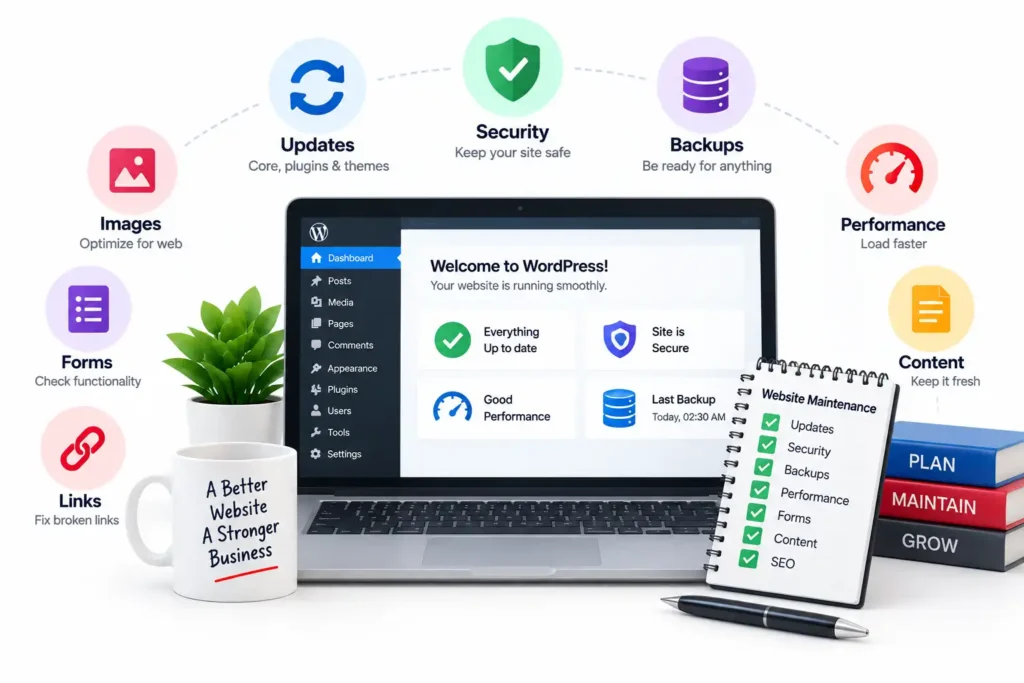
One of the biggest mistakes businesses make with WordPress is treating maintenance as an emergency service.
A website may appear to be working perfectly while:
- Plugins are becoming outdated
- Backups are failing
- Forms aren’t delivering emails
- Pages are getting slower
- User accounts are accumulating
- Security vulnerabilities are appearing
Regular maintenance helps identify these problems before they become expensive problems for your business.
Need Help Maintaining Your WordPress Website?
Managing a business website takes time. If you don’t have an internal technical team, ongoing WordPress maintenance can help keep your website secure, updated, optimized, and functioning properly.
At WebTechDesigning, we provide WordPress development, WooCommerce development, website maintenance, bug fixing, performance optimization, and custom WordPress solutions for businesses and agencies.
Whether you need occasional technical support or ongoing WordPress website maintenance, having a reliable development partner means you can focus on your business while someone takes care of the technology behind it.
Keep Your Website Healthy. Keep Your Business Moving.
Need help with your WordPress website?
FAQ
How often should a WordPress website be maintained?
Most business websites should be monitored and maintained regularly rather than waiting for problems to occur. Updates, backups, security monitoring, and important functionality should be checked frequently, while deeper performance and content reviews can be performed monthly or quarterly.
What happens if I don’t maintain my WordPress website?
An unmaintained website can become vulnerable to security issues, plugin conflicts, compatibility problems, performance degradation, broken forms, outdated content, and unexpected downtime.
Should I update WordPress plugins immediately?
Not necessarily in every situation. For important production websites, it’s sensible to have a recent backup and consider compatibility and testing before applying major updates.
How often should I backup my WordPress website?
It depends on how frequently your website changes. A frequently updated or eCommerce website may require daily backups, while a less active informational website may use a less frequent schedule.
Is WordPress maintenance necessary for small businesses?
Yes. Website size doesn’t eliminate the need for maintenance. Even a small business website can collect leads, represent your brand, and be exposed to security and compatibility issues.
Does WordPress maintenance improve SEO?
Maintenance itself isn’t a direct guarantee of higher rankings. However, keeping your website accessible, fast, functional, technically sound, and free of broken experiences can support good SEO and user experience.
Final Takeaway on WordPress website maintenance
A WordPress website should be treated as an ongoing business asset, not a one-time project.
Update it. Back it up. Secure it. Test it. Optimize it. Monitor it.
A small amount of regular maintenance can help prevent much larger problems later.